Guide · 01 Using Notes as your household mini bank
Think of Notes as little accounts in a shared household bank — one note for each part of life you keep coming back to. A few that work well:
- Recipes The meals your household actually cooks, with links — ready on the next grocery run.
- Kids’ activities Rainy-day and weekend ideas, with links to bookings or how-tos.
- Wish lists Birthday and holiday ideas everyone adds to through the year.
- Travel checklist A packing list you reuse every trip. A to-do gets checked off and lost; a note stays whole — link it to the trip’s calendar event and it’s right there when you pack.
- Christmas cards Who to send to, ticked off as you go.
Note Notes link to calendar events, lists, and people — so the right note surfaces exactly when you need it.
Guide · 02 Importing calendar events
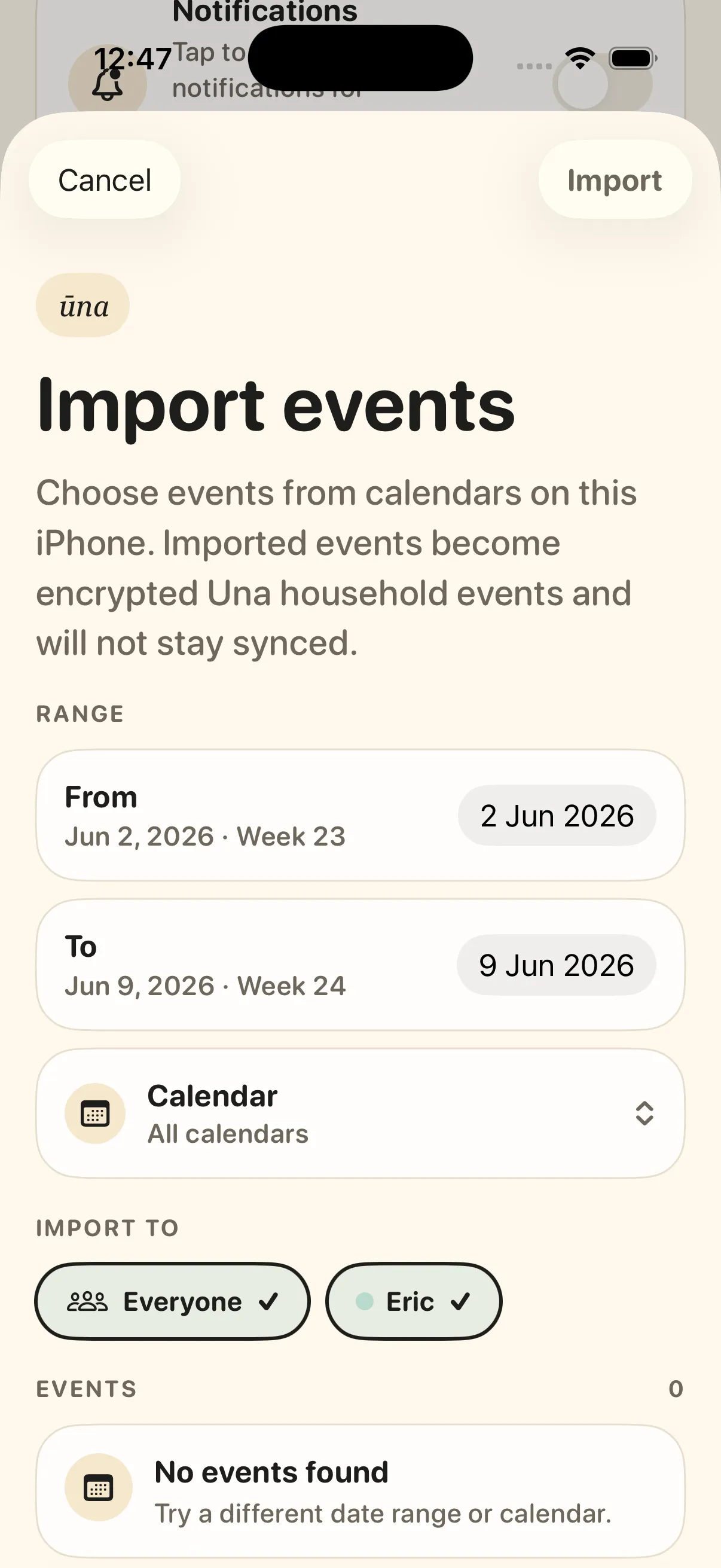
Bring events from Apple Calendar or Google Calendar into Ūna. Imported events become encrypted household events — it’s a one-time import, not a live sync, so later changes in the source calendar won’t flow through.
- 01 Open Settings → Import events.
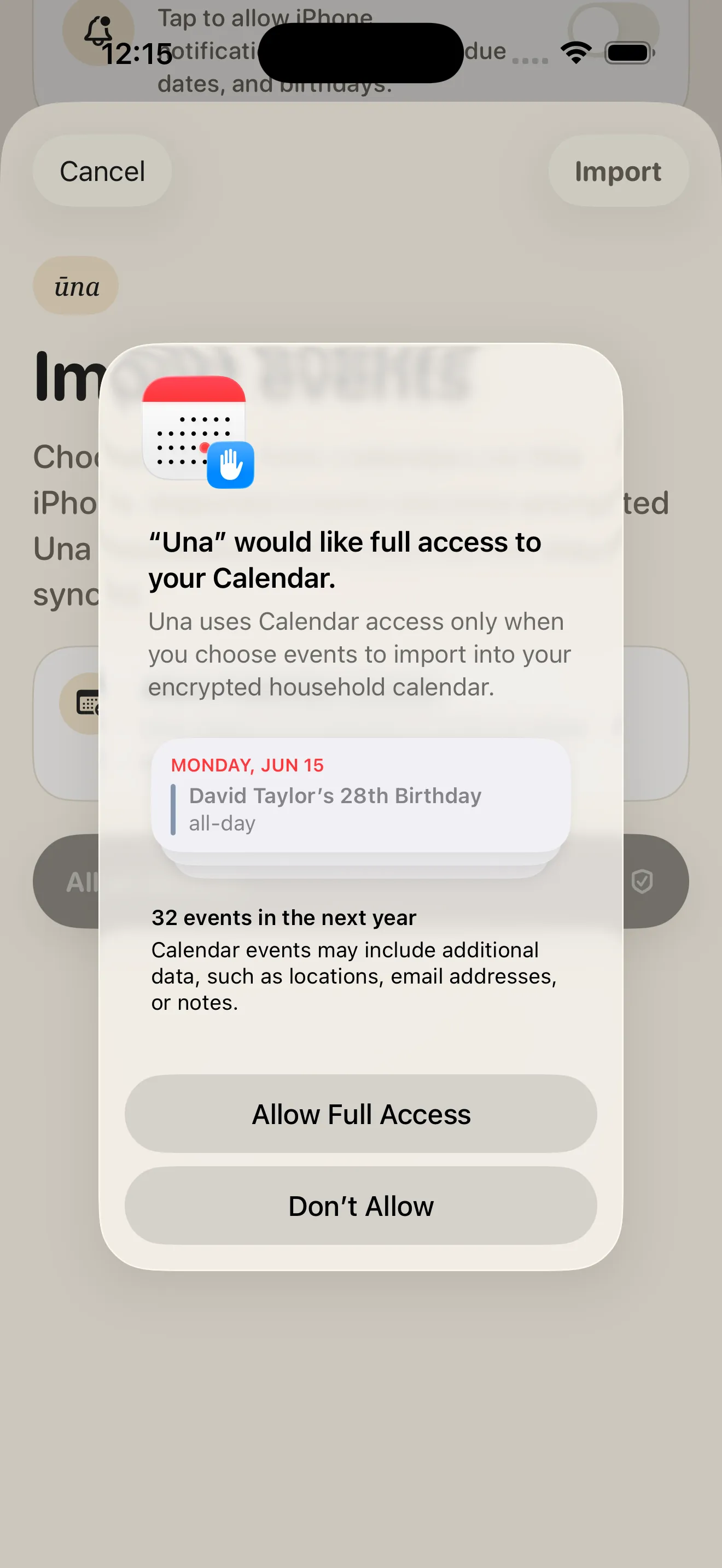
- 02 Allow calendar access — Ūna reads it only while you choose what to import.
- 03 Pick a date range and calendar, choose who the events are for, then tap Import.
Note Imported events are copied in and encrypted as Ūna household events; afterwards they stand on their own and won’t stay in sync with Apple Calendar or Google Calendar.
Guide · 03 Tracking birthdays
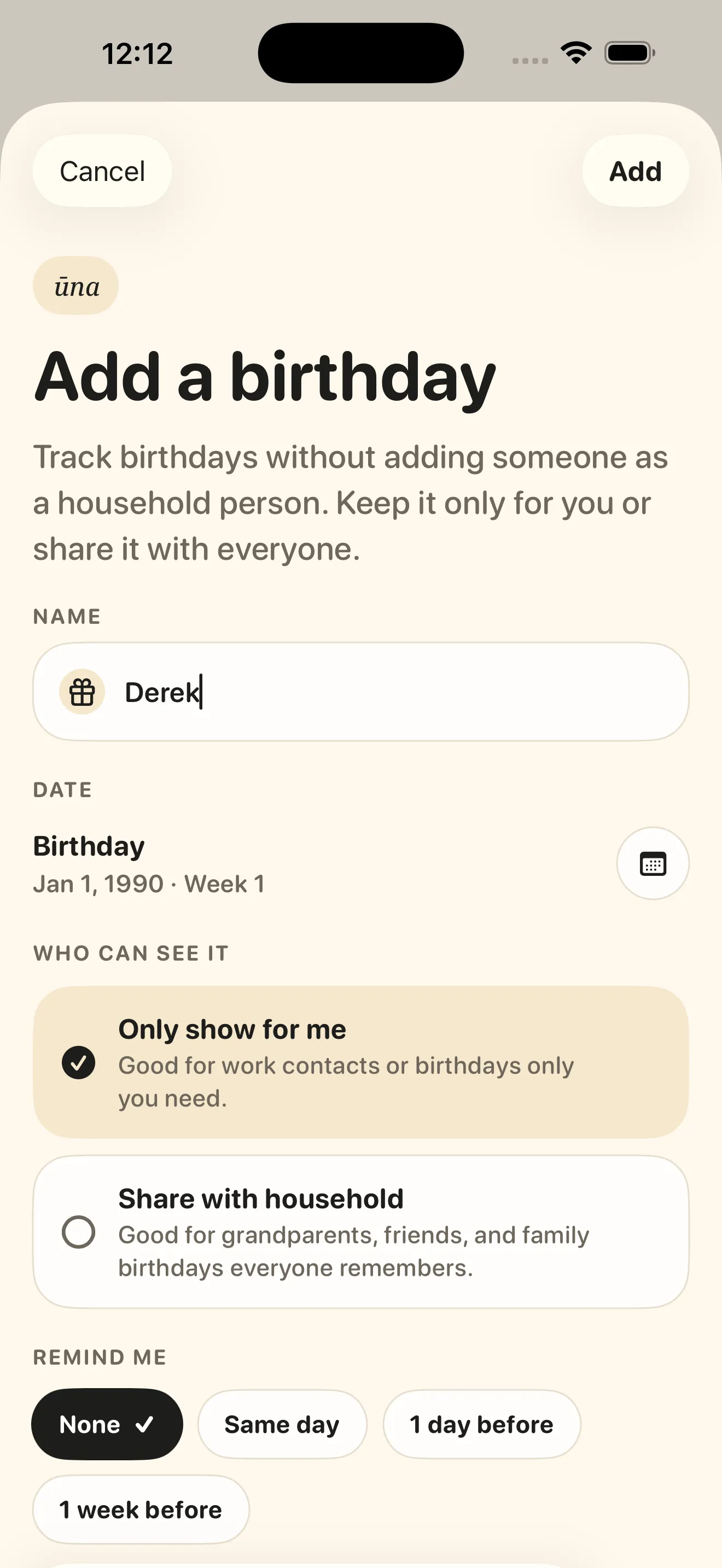
Add a birthday once and Ūna remembers it every year — no shared spreadsheet, no one quietly forgetting. As you add it, you choose who sees it.
Note “Only show for me” keeps a birthday private (handy for work contacts); “Share with household” reaches everyone for family and friends. Set a reminder — same day, a day before, or a week before.
Guide · 04 Using attachments
Attach the document a plan depends on right to its calendar event, so nobody’s digging through email at the gate.
- 01 Create the calendar event — a flight, a match, a reservation.
- 02 Add the PDF or image as an attachment.
- 03 Anyone in the household opens it straight from the event.
Note Great for flight itineraries, ticket PDFs, booking confirmations, and parking passes.
Guide · 05 Using location in calendar events
Add a place to an event and Ūna shows it on the event. Tap it to open straight in Apple Maps or Google Maps for directions — handy when you’re heading somewhere new.
Guide · 06 Setting up widgets
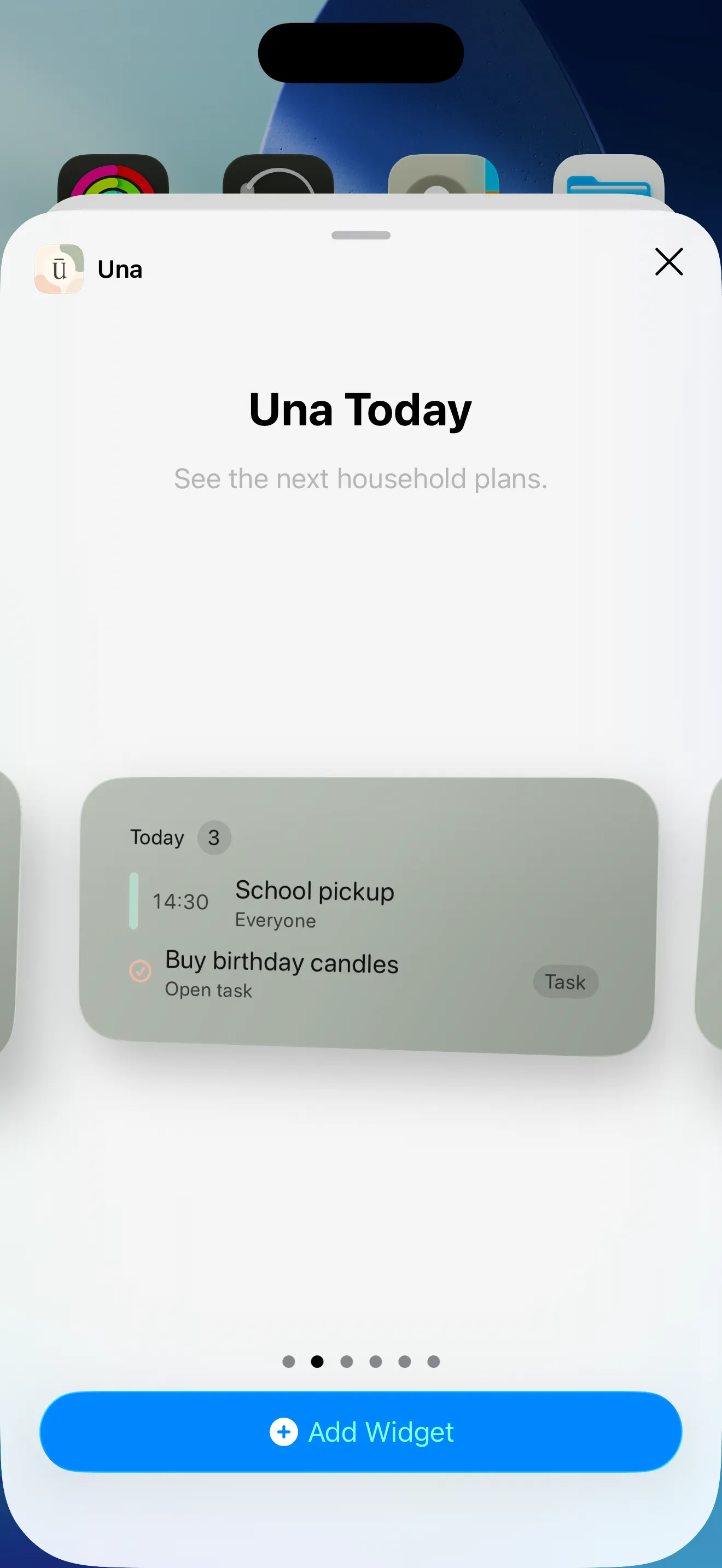
Put the day’s plan on your home screen so you see what’s next without opening the app.
- 01 On iPhone or iPad, open the home-screen editor, tap Add Widget, then search for Ūna.
- 02 On Android, touch and hold an empty area of the home screen, choose Widgets, then find Ūna.
- 03 Choose the widget you want and place it on your home screen.
Note Widgets are part of Ūna Plus. They read a small local snapshot on your device — they don’t need the app open and don’t start household sync on their own.
Guide · 07 Inviting another adult to the household
Ūna is at its best when the adults run the household together — both adding errands, plans, and birthdays. That shared effort is what gives a household its soul.
- 01 Open the Family tab.
- 02 Tap “Invite another adult.”
- 03 Create a fresh invite link.
- 04 Send it only to the person you want to join.
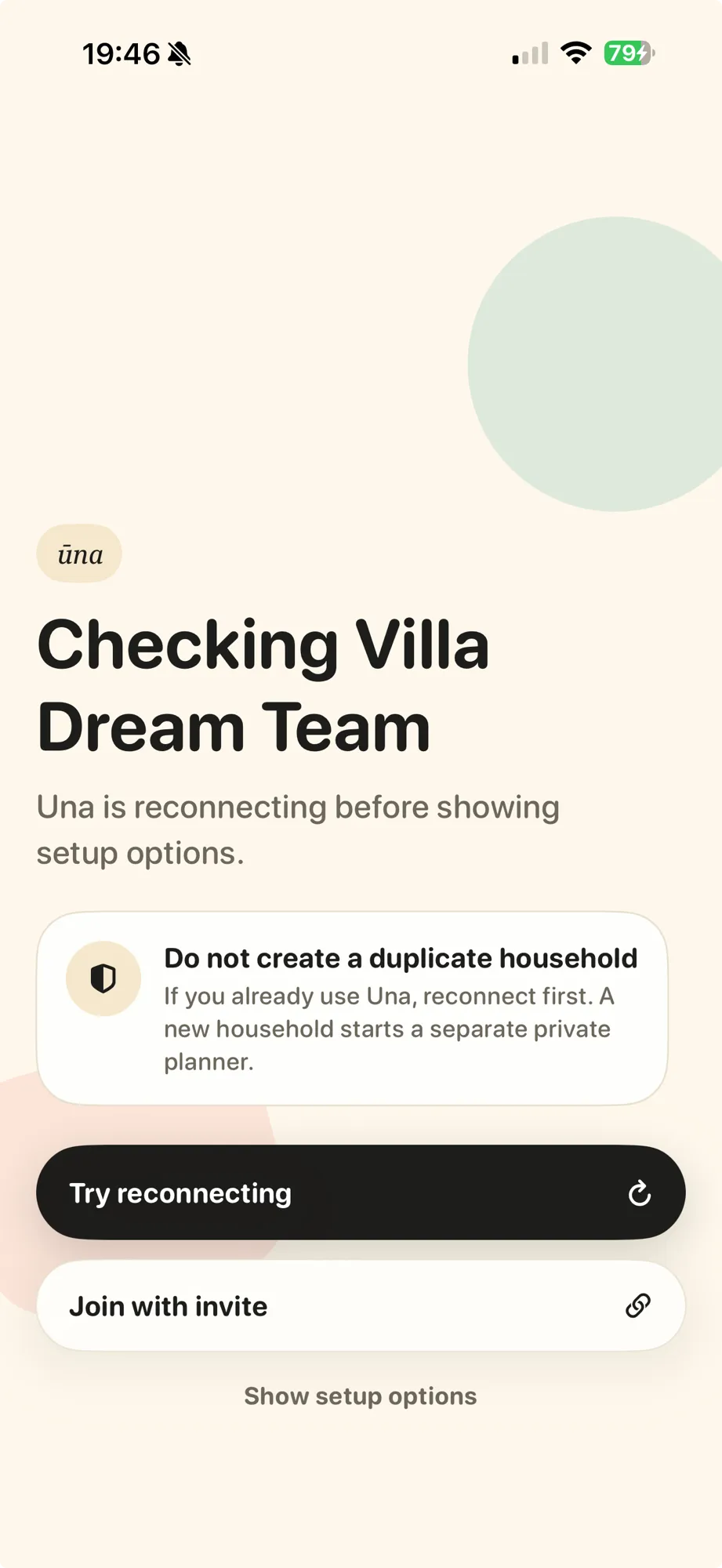
Note Re-inviting someone who left? Always create a fresh link — see Runbook 06 above.
Guide · 08 Plans, billing & restoring purchases
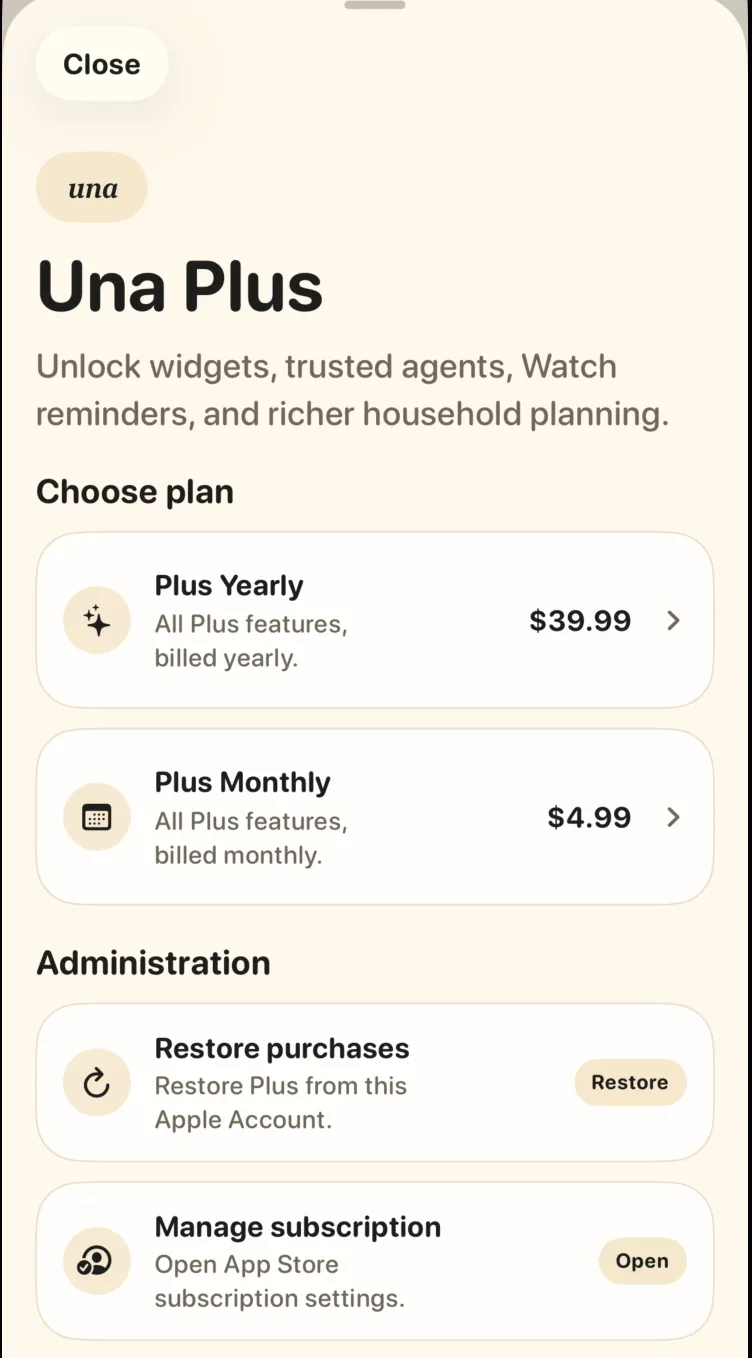
Ūna Plus unlocks widgets, assistant connections, Watch reminders, and richer household planning. Plans and billing live under Settings → Ūna Plus.
- 01 Upgrade: open Settings → Ūna Plus and choose a monthly or yearly plan.
- 02 Paid but don’t see Plus? Tap Restore purchases to check the App Store or Google Play account used to subscribe.
- 03 Change or cancel: tap Manage subscription to open the settings for the store where you subscribed.
Note Billing is handled by Apple on iOS and Google on Android. Ūna can’t charge, refund, or cancel a subscription for you — manage it in the store where you subscribed.